
Customers
Customer Management
This section provides complete control over your customer database, including search functionality, paginated listings, and tools for creating new customer records or exporting existing data.
All Customers Listing
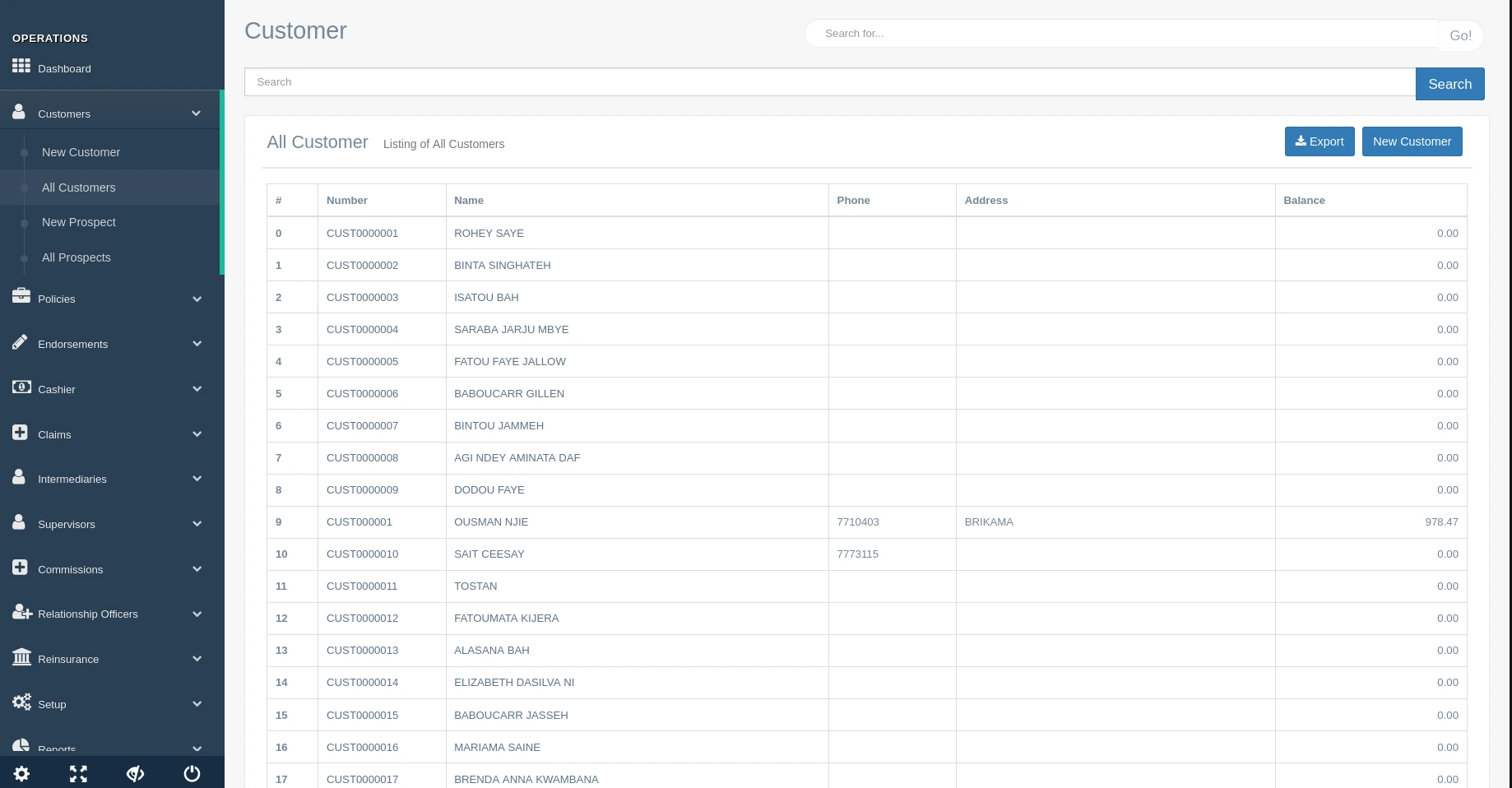
The customer listing displays all registered customers in a paginated table format with search capabilities and action buttons.
Accessing the Customer List
- Log into the Insurance Management System
- Select "Customers" from the Operations menu in the sidebar
- The system displays the default customer listing view
Customer Table Features
Pagination:
- Navigate through customer pages using numbered page links
- Adjust items per page (default: 20 records)
- System displays current page and total records

Search Functionality:
- Search across all customer fields
- Real-time filtering as you type
- Supports partial matches (e.g., "BIN" finds BINTA SINGHATEN)

Action Buttons:
- Export: Download customer data in CSV or Excel format
- New Customer: Open the customer creation form

Customer Search Options
The system provides multiple ways to locate customer records:
Basic Search
- Located at the top of the customer listing
- Searches across all fields simultaneously
- Displays results as you type
Advanced Search
- Click the "Advanced Search" toggle
- Filter by specific fields:
- Customer ID range
- Name (supports partial matches)
- Phone number
- Address keywords
- Balance range
- Combine multiple filters for precise results
Exporting Customer Data
The system provides a controlled export process with field selection capabilities and PDF-only output.
Export Workflow
Initiate Export:
- Click the "Export" button in the customer listing toolbar
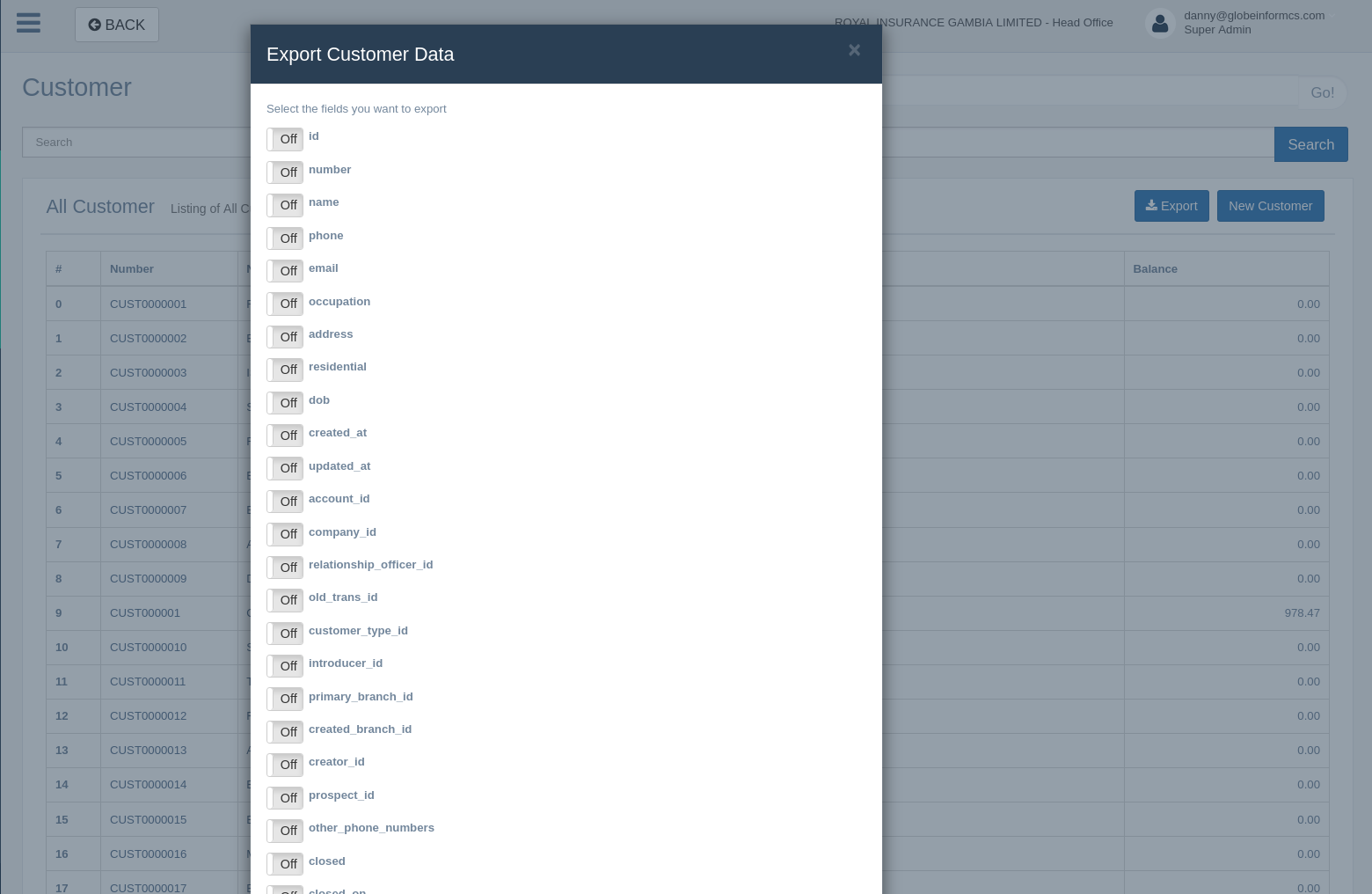
- A modal dialog appears with all available fields listed
Field Selection:
- All fields are initially toggled OFF (default state)
- Toggle switches to select specific fields for export
- Available fields include:
- Customer ID
- Name
- Phone
- Address
- Balance
- Date Created
- Last Updated
- Relationship Officer
Export Execution:
- Click "Generate PDF" to confirm selection
- System processes the request and:
- Success: Automatically downloads the PDF file
- Failure: Redirects to 404 error page
Error Handling
If the export fails (due to system error or invalid parameters):
- The system immediately redirects to a 404 error page
- The URL remains unchanged from the customer listing page
- Error details are logged in the system backend
- Users should:
- Refresh the page
- Verify network connection
- Try again with fewer fields selected
- Contact support if issue persists
Export Limitations
- Format: PDF only (no CSV/Excel options)
- Size Limit: Maximum 500 records per export
- Frequency: 10 exports per minute (rate-limited)
- Data Freshness: Reflects system state at time of export initiation
Best Practices for Export
- Select only necessary fields to reduce PDF size
- For large customer sets, use pagination and export in batches
- Verify successful download before navigating away
- Check 404 page refresh behavior with your IT team
Creating New Customers
To add a new customer record:
- Click the "New Customer" button
- Complete the customer creation form (see detailed field explanations below)
- Submit the form
- System generates a new Customer ID (e.g., CUST0000047)
Managing Customer Records
For existing customers in the listing:
- View Details: Click any row to see complete customer information
- Edit: Modify customer details from the view screen
- Add Note: Attach internal notes to customer records
- Deactivate: Flag inactive customers (retains history)
System-Generated Customer IDs
The system automatically assigns customer IDs in this format:
- Prefix: CUST
- 7-digit sequential number (e.g., CUST0000045)
- Numbers maintain sequence even if customers are deleted
Example IDs from your system:
- CUST0000001 (ROHET SAYE)
- CUST0000045 (ALEU B.M. CEESAY)
- CUST0000031 (HERBERT SAMUEZ ROBIN)
Best Practices for Customer Management
- Regular Updates: Keep customer contact information current
- Consistent Formatting: Use standard formats for phone numbers
- Duplicate Checks: Search before creating new records
- Data Backups: Regularly export customer data
- Access Control: Limit edit permissions appropriately