
Introduction
System Authentication
System Login Portal
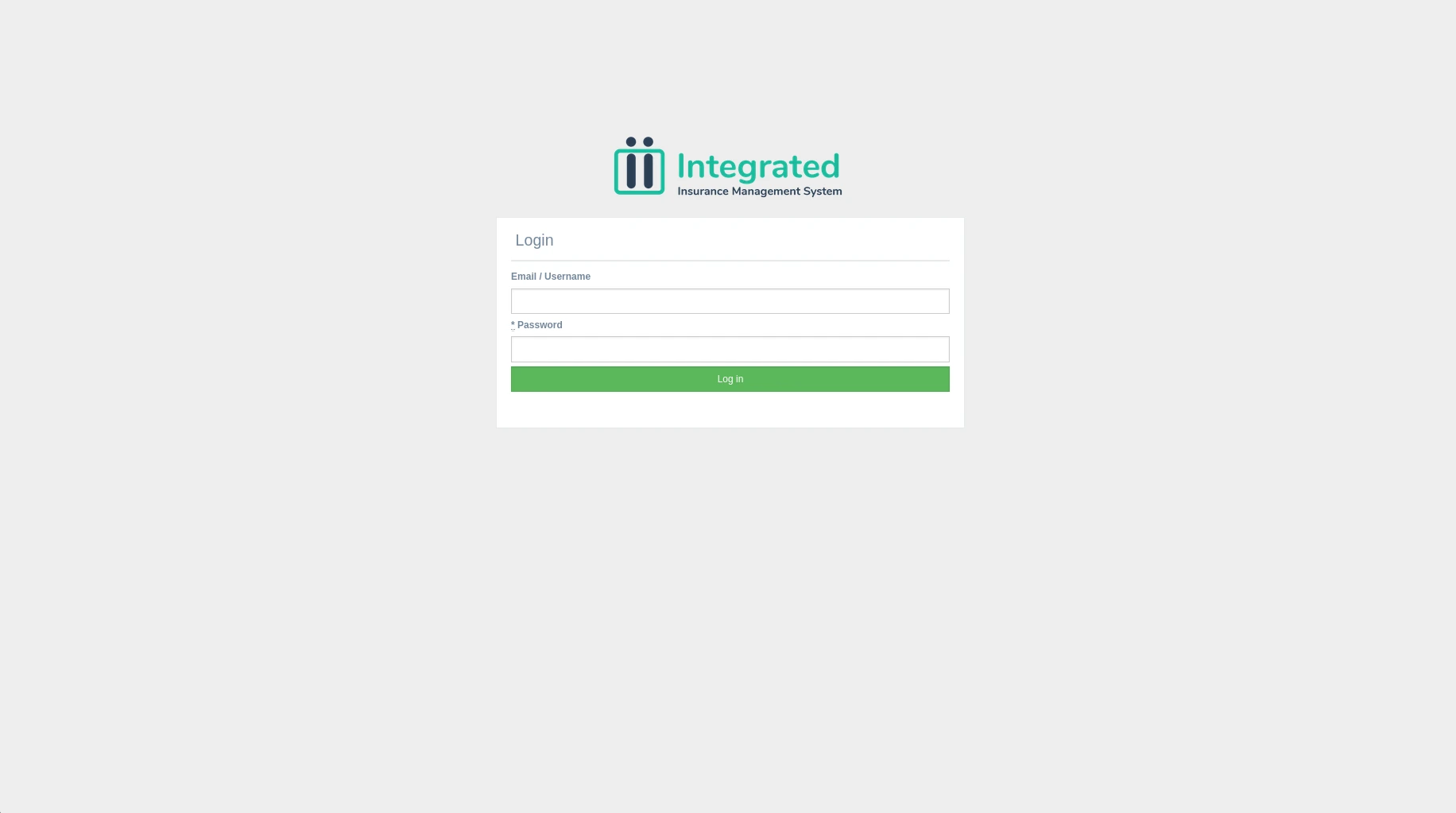 Fig. 1 - Secure gateway to the insurance management platform
This authentication interface serves as the primary access control point for the Integrated Insurance Management System. All users must successfully complete this process to access policy records, customer data, and underwriting tools.
Login Page Overview
The login screen appears in these scenarios:
- Initial system access each workday
- After 30 minutes of inactivity (automatic timeout)
- Following manual logout
- When session tokens expire (every 12 hours)
- After 5 failed attempts (temporary lockout)
To access the Integrated Insurance Management System (IIMS), users must have:
Authentication Fields
Email / Username Input
Technical Specifications:
- Accepts either registered email or system username
- Valid formats:
- Email: user@domain.com (company domain required)
- Username: 6-20 characters (letters, numbers, underscores)
- Case-insensitive but preserves formatting
- Auto-completes from browser memory if enabled
Validation Rules:
- Required field (cannot be empty)
- Must match existing account pattern
- Triggers account existence check on blur
- Shows green checkmark when valid format detected
Error States:
- Red border + icon when empty
- "Account not found" message after submission failure
- "Invalid format" for malformed entries
Password Field
Security Requirements:
- Minimum 12 characters
- Requires 3 of these 4:
- Uppercase letters (A-Z)
- Lowercase letters (a-z)
- Numbers (0-9)
- Special characters (!@#$%^&*)
- No dictionary words or repeated sequences
- Changed every 90 days (enforced by system)
Field Behavior:
- Masked by default (••••••••)
- Toggle visibility icon (eye symbol)
- Strength meter appears while typing
- Auto-capitalization disabled
- Paste functionality allowed but logged
Error Handling:
- "Incorrect password" (generic message)
- "Account locked" after 5 failures (30-minute timeout)
- "Password expired" when beyond 90 days
Login Process Workflow
Action Button
- Log In: Submits credentials for verification
- Disabled state until both fields contain text
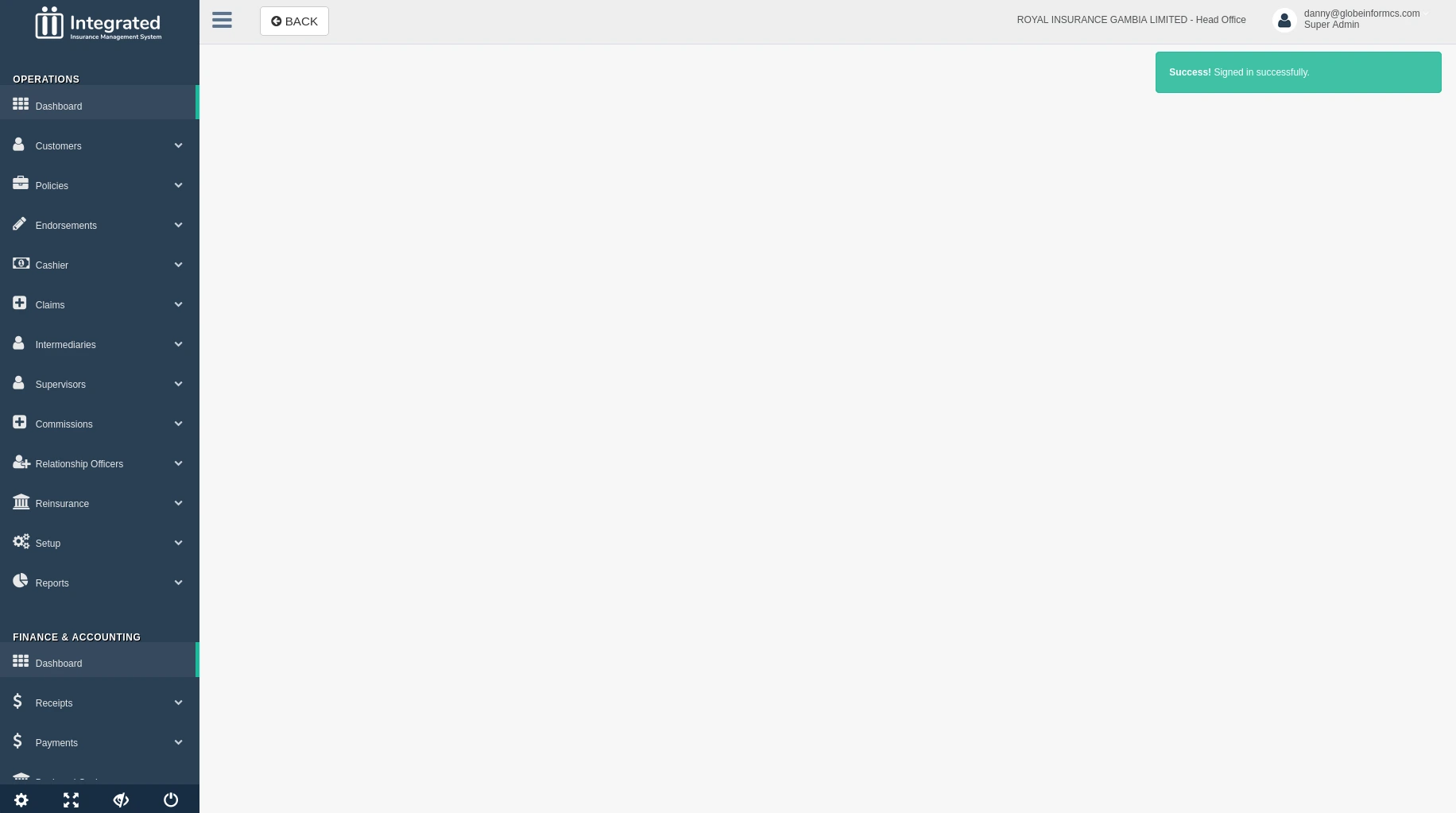
Successful Authentication
- System verifies credentials against Active Directory
- Generates session token with 12-hour validity
- Logs entry event with timestamp/IP
- Redirects to last-accessed page or dashboard
- Displays welcome toast with:
- User's full name
- Last login time
- Unread notifications count
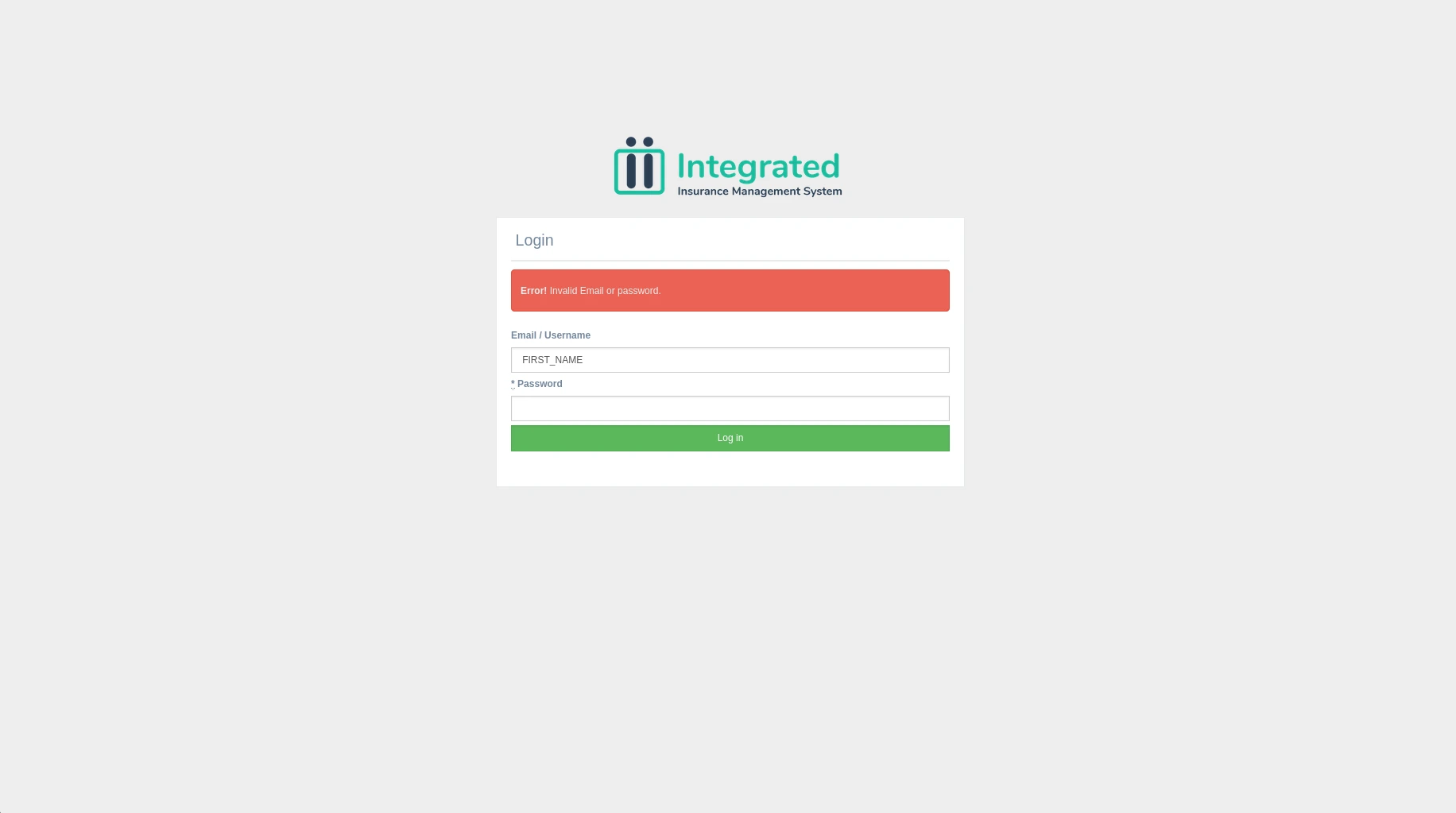
Failed Authentication
- System increments attempt counter
- Logs failed attempt with metadata
- Displays generic error message
- Preserves username/email field
- Clears password field
Security Features
Password Recovery:
- Click "Forgot Password" link
- Verify through registered email
- Complete multi-factor authentication
- Set new password
Best Practices for Secure Access
Credential Management
- Never share login details
- Avoid public computer access
- Change password immediately if compromised
Session Habits
- Log out when leaving workstation
- Report suspicious activity immediately
- Verify URL before entering credentials
Troubleshooting
- Check caps lock state
- Verify network connection
- Try incognito mode for issues
- Contact IT before final lockout
Administrative Notes
- All logins recorded for audit
- Failed attempts trigger alerts