
Customers
Edit Customer
This section provides detailed guidance on updating existing customer information within the Integrated Insurance Management System. Learn about accessing the edit customer interface, modifying various customer details, and processing customer record updates.
Edit Customer Interface
The Edit Customer interface provides a comprehensive form for updating an existing customer's information in the insurance system. This interface allows staff to modify customer details as needed while maintaining data integrity and tracking changes.
Accessing the Edit Customer Page
- Log into the Insurance Management System
- Navigate to the Edit Customer page through one of these methods:
- From the "All Customers" list, click the Edit icon for a specific customer
- From a customer's preview page, click the "Edit Customer" button
- The system will display the Edit Customer form with the customer's current information
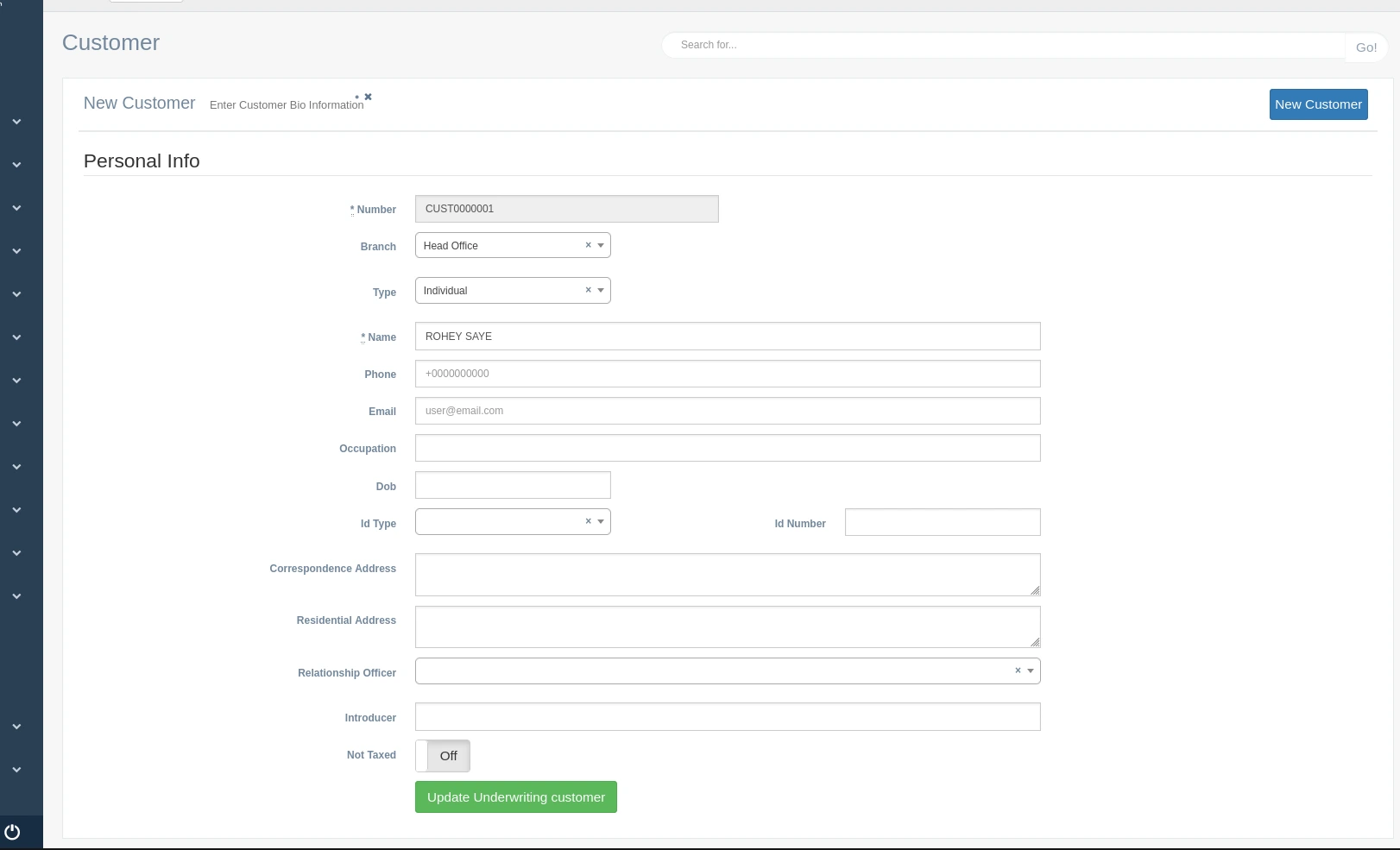
Understanding the Edit Customer Form
The Edit Customer form displays all customer information in editable fields, organized into logical sections. Below is a detailed explanation of each field and its purpose in the system.
Page Header
This section provides context and primary actions:
Customer Title: Indicates you are in the customer section of the system.
New Customer Subtitle: Shows the current operation is editing an existing customer record.
Instruction Text: "Enter Customer Bio Information" provides guidance on the form's purpose.
New Customer Button: Located at the top-right, this allows you to abandon the current edit and start creating a new customer instead.
Personal Info Section
This section contains the essential identifying information about the customer:
Number (Read-only): The unique system-generated identifier for the customer (e.g., CUST0000001). This field has an asterisk (*) indicating it is required but cannot be modified after creation.
Branch: Dropdown selector for the company branch that manages this customer relationship. The current value (e.g., "Head Office") is displayed and can be changed.
Type: Dropdown selector for the customer classification (e.g., "Individual"). This categorizes the customer and affects available policy types.
Name: Input field containing the customer's full name (e.g., "ROHEY SAYE"). This field has an asterisk (*) indicating it is required.
Phone: Input field for the customer's contact number, shown in international format (e.g., +000000000).
Email: Input field for the customer's email address (e.g., user@email.com).
Occupation: Input field for the customer's profession or business activity.
Dob: Date picker field for the customer's Date of Birth.
ID Type: Dropdown selector for the type of identification document provided by the customer.
ID Number: Input field for the unique identifier on the customer's identification document.
Address Information
This section allows updating the customer's location details:
Correspondence Address: Text area for the primary address where all mail communications should be sent.
Residential Address: Text area for the customer's actual living address or business location.
Relationship Management
Fields related to managing the customer relationship:
Relationship Officer: Dropdown selector for the staff member responsible for managing the customer relationship.
Introducer: Input field for the person or entity that referred the customer to the insurance company.
Not Taxed: Toggle switch that indicates whether the customer is exempt from certain taxes. The current setting (e.g., "Off") is displayed and can be changed.
Action Button
- Update Underwriting customer: This button submits the form with all modifications and updates the customer record in the system.
Edit Customer Functions
Modifying Customer Information
To update specific customer details:
- Locate the field containing the information that needs to be modified
- Click on the field to activate it for editing
- For text fields: Type the new information
- For dropdown fields: Click to open the dropdown and select the new value
- For date fields: Use the date picker to select the new date
- For toggle switches: Click to change between "On" and "Off" states
Field Validation
While editing customer information:
- Required fields (marked with an asterisk *) cannot be left empty
- Email addresses must follow standard email format (username@domain.extension)
- Phone numbers should follow the expected format
- Date fields must contain valid dates
- The system performs real-time validation and may display warning messages for invalid entries
Submitting Changes
To save modifications to the customer record:
- Review all changes to ensure accuracy
- Click the "Update Underwriting customer" button at the bottom of the form
- The system processes the changes and updates the customer record
- Upon successful update, the system displays a confirmation message
- The updated information becomes immediately available throughout the system
Handling Update Failures
If the update process encounters issues:
- The system displays error messages identifying problematic fields
- Fields with errors are highlighted for attention
- Correct the indicated issues and attempt to submit again
- If the problem persists, the system provides more specific guidance
Best Practices for Editing Customer Information
To ensure accurate customer records and maintain data integrity:
- Verify the identity of the customer before making significant changes to their information
- Update all relevant fields when a customer reports a change (e.g., if address changes, check if phone or email also changed)
- Maintain consistency in formatting for addresses, names, and other text fields
- Document the reason for major changes in appropriate system notes or comments
- Review the complete customer record after updates to ensure all information remains consistent
- Only update the "Not Taxed" status when proper documentation or authorization is provided
- Verify branch and relationship officer assignments when customers move locations
- Always double-check critical fields like contact information before submitting changes
- Use the edit function to promptly update information when customers report changes
- Consider how changes might affect existing policies or claims in process