
Customers
New Prospects
This section provides complete documentation for managing potential customers (prospects) within the Integrated Insurance Management System. Learn how to capture prospect information, understand each form field's purpose, and properly process prospect records.
Prospect Creation Form
The prospect creation form serves as the initial engagement point with potential customers before they become policyholders. This interface captures essential information for lead nurturing, conversion tracking, and relationship building.
Navigating to the Form
- Log into the Insurance Management System
- Select "Prospects" from the Sales menu in the sidebar
- Click on "New Prospect" to access the prospect creation form
- The system will display the prospect information form with relevant fields
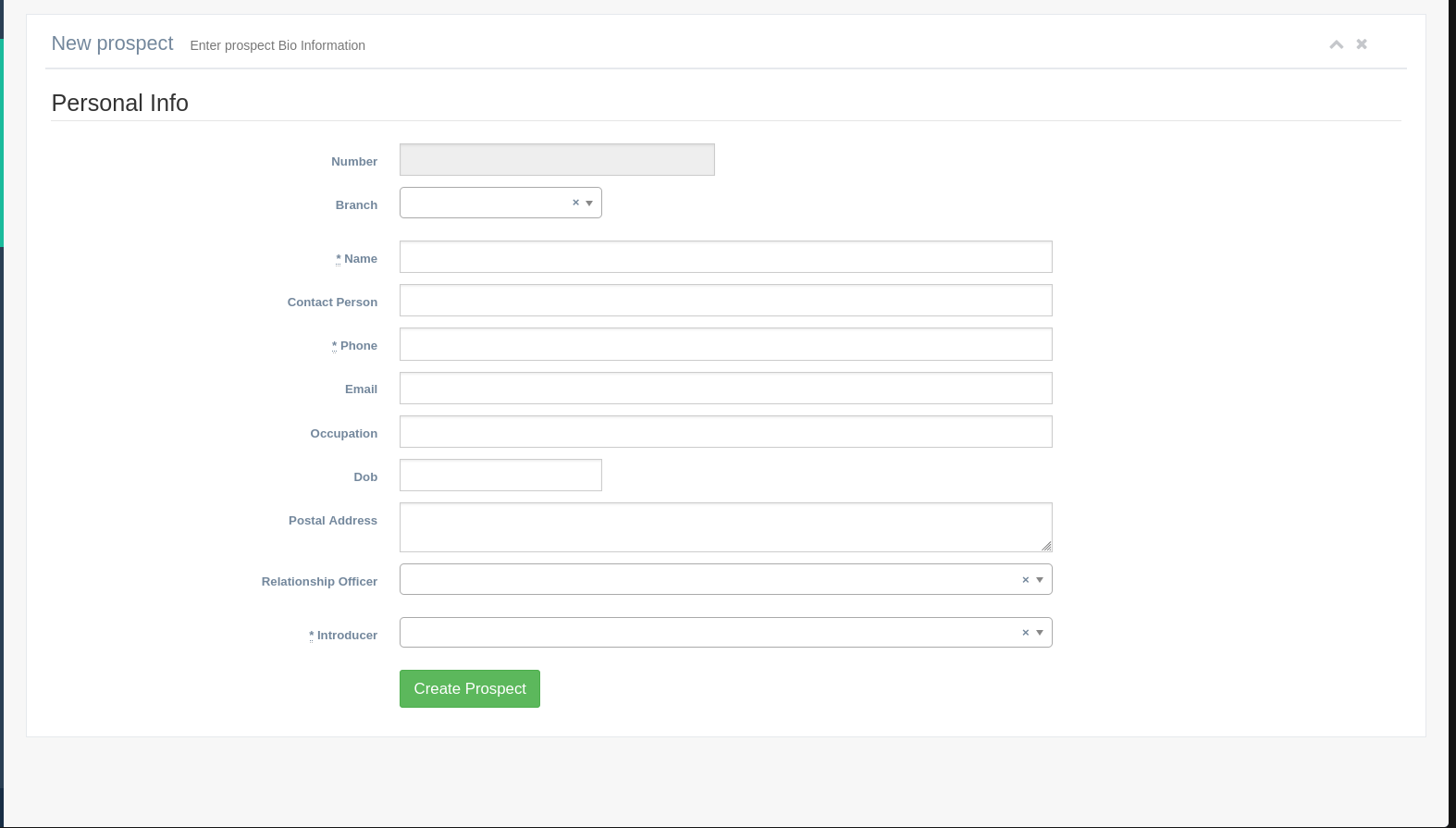
Understanding Form Fields
The prospect creation form is organized into logical sections to streamline data entry:
System Information Section
Number: A unique system-generated identifier for the prospect (format: PROS000XXXX). This field is automatically populated when the form loads and cannot be edited.
Branch: The company branch responsible for nurturing this prospect. Defaults to the user's primary branch but can be overridden when necessary.
Prospect Details Section
Name: The prospect's full name (for individuals) or registered business name (for companies). This field is required and accepts 2-100 characters.
Contact Person: (Visible only for corporate prospects) The primary contact individual at the prospect company. Features auto-complete from existing contacts.
Phone: The prospect's primary contact number. Requires 7-15 digits and auto-formats with country code. Must be unique across all prospects and customers.
Email: The prospect's electronic contact address. Used for marketing communications and document delivery when the prospect converts.
Occupation: The prospect's profession or business sector. Helps with targeted marketing and product recommendations.
Dob: (For individual prospects only) Date of Birth with age validation (minimum 18 years). Uses DD/MM/YYYY format.
Postal Address: The prospect's mailing address. Features auto-complete from Google Places and previous entries.
Relationship Management
Relationship Officer: The staff member responsible for prospect follow-up. Required field that filters to active team members.
Introducer: The referral source that brought in this prospect. Select from partners database for commission tracking.
Action Button
- Create Prospect: Submits the form and creates the new prospect record. Initiates the lead nurturing workflow.
Form Submission Outcomes
Successful Submission
When a prospect is successfully created:
- The system displays a green success notification confirming "Prospect created successfully"
- Automatically assigns the prospect to the selected Relationship Officer
- The new record appears in "Active Prospects" lists and dashboards
- Triggers a welcome email if email address was provided
- Logs the creation event with timestamp and user details
- Redirects to the prospect detail view
Failed Submission
If prospect creation fails:
- Displays a red error notification with specific failure reason
- Highlights problematic fields with red borders
- Shows inline error messages below relevant fields
- Preserves all entered data for correction
- Common failure reasons include:
- Missing required fields (name, phone, relationship officer)
- Invalid phone number format
- Duplicate phone/email detection
- Age verification failure for individual prospects
Best Practices for Prospect Creation
To ensure high-quality prospect records and effective lead management:
- Always verify phone numbers before submission
- Use complete names (first + last for individuals)
- Select the appropriate branch for territory management
- Assign relationship officers promptly
- Document introducers for referral tracking
- Update prospect status after each interaction
- Convert to full customer record when ready
- Regularly clean up inactive prospects